The Outlook Feature That Keeps Your Priority Emails Where You Can Always See Them
 Shelley Fishel
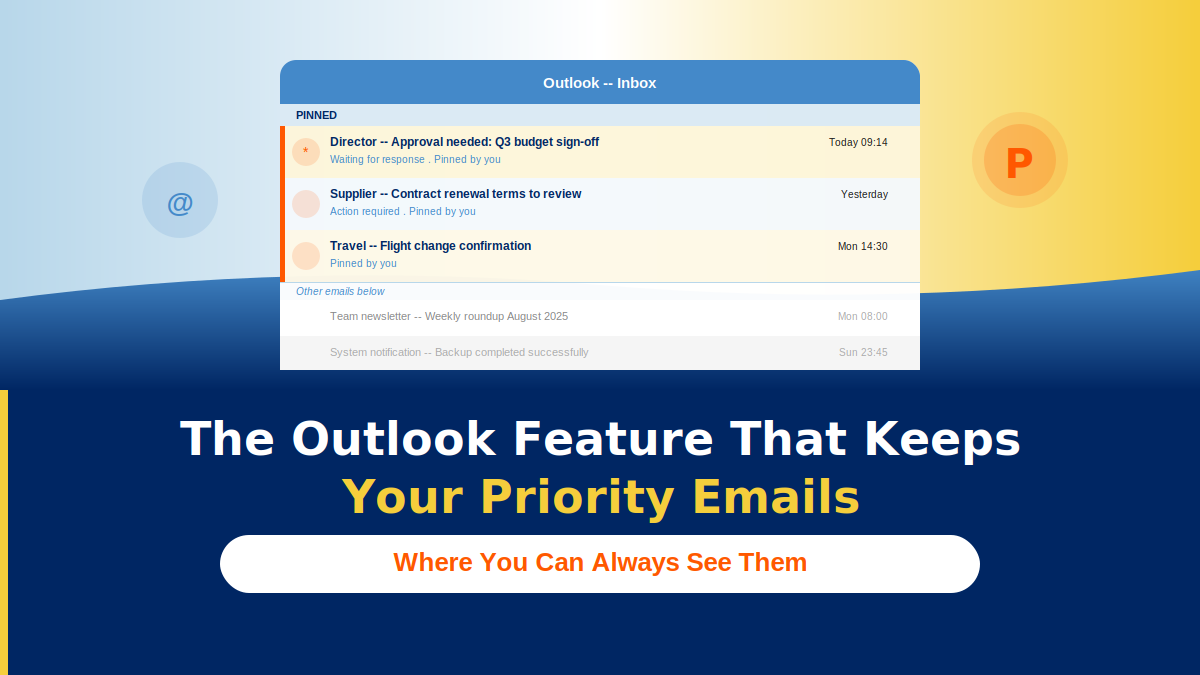
Stop losing priority emails in a busy inbox. This simple New Outlook feature creates an instant priority list in one right-click.
The Outlook Feature That Keeps Your Priority Emails Where You Can Always See Them
You have 50 unread emails. Somewhere in there is the approval you’re waiting on, the travel change that came through this morning, and the supplier thread you need to follow up before end of day.
You’ve read them. You know they’re important. But they’re already sliding down the inbox as new messages arrive — and the next time you need them, you’ll be scrolling or searching.
There’s a better way, and it takes one right-click.
What pinning does in New Outlook
When you pin an email, it moves to the top of your inbox and stays there — regardless of what arrives after it. No folder to check. No flag to overlook. It simply stays visible until you’re done with it.
It’s the closest thing Outlook has to a sticky note on your inbox.
How the Koffee Island PA uses it
The PA to the regional manager at Koffee Island keeps three things pinned at any given time: the ongoing supplier negotiation thread, the weekly report email, and anything waiting for a director’s sign-off.
Everything else flows through the inbox as normal. But those three threads are always right there at the top, impossible to miss, ready to act on. When something is resolved, it gets unpinned and something new takes its place.
It’s a simple habit that turns a busy inbox into something manageable.
How to pin an email
In New Outlook:
- 1. Right-click the message (or click the … menu on the email)
- 2. Choose Pin
- 3. The email moves to the top of your inbox and stays there
When you’ve acted on it, right-click again and choose Unpin.
That’s it. No settings to configure, no folders to create.
Why this works better than flags or folders
Flags are easy to overlook — they blend into the inbox visually and don’t change the position of the email. Folders take the email out of sight entirely, which defeats the purpose when you need a reminder to act.
Pinning keeps the things that matter visible, at the top, without any reorganisation. It creates a short, always-visible priority list that updates as your work does.
Quick win
Pick one live thread you’re currently waiting on — an approval, a response, a decision. Pin it right now.
Notice how much easier it is to keep track of when it’s sitting at the top rather than drifting down the inbox. Unpin it when it’s resolved, and pin the next one.
That’s the whole system.
Want to build more workflows like this?
Cohort 5 of Microsoft 365 with Copilot — The Human Advantage starts on 8th September, with live online sessions every Tuesday:
- • Tuesday 8th September
- • Tuesday 15th September
- • Tuesday 22nd September
- • Tuesday 29th September
It’s a practical, real-world programme designed specifically for assistants and executive assistants who want to work smarter with Microsoft 365 and Copilot.
👉 Join the Cohort 5 waiting list
Shelley
Categories: : Copilot, Microsoft 365 with Copilot, Microsoft Outlook