Still Carrying Your To-Do List in Your Head? Here's the Monday Morning Fix.
 Shelley Fishel Fishel
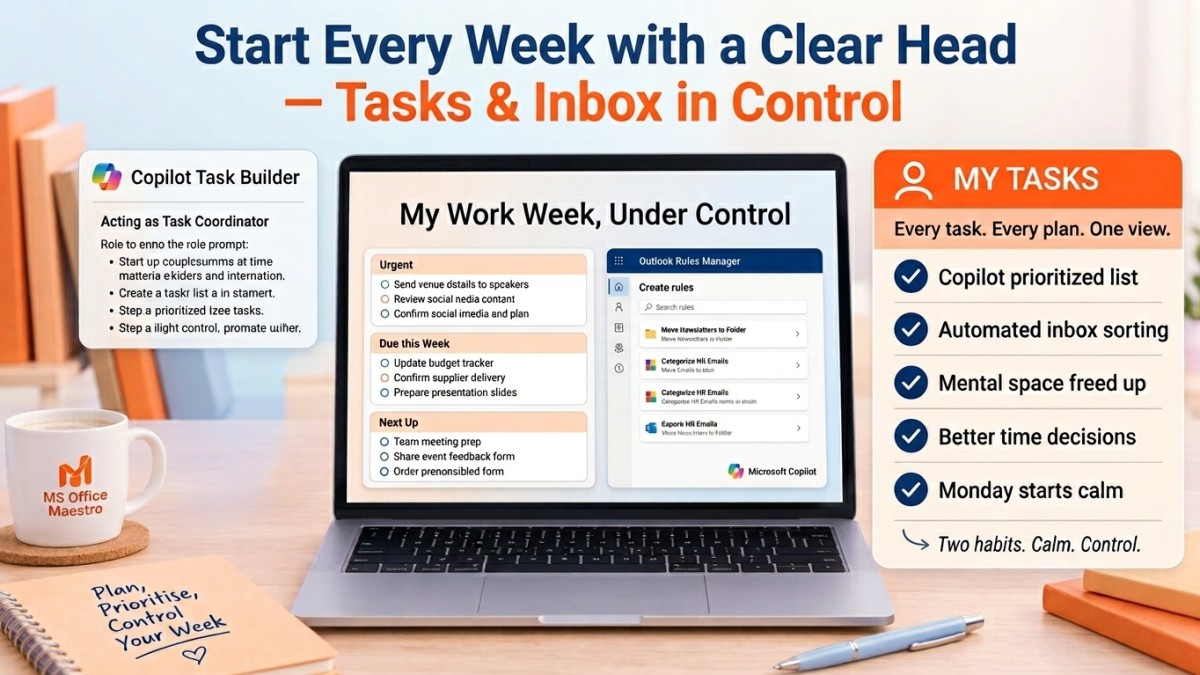
Stop starting the week scattered. This Copilot task list and one Outlook rule give you focus before the noise even starts.
How to Start Every Week With a Clear Head — Tasks and Inbox Under Control Before 9am
You know when Monday morning arrives and before you've even had a chance to think, you're already reacting? An email here, a chat notification there, a half-remembered action from last Friday that you meant to deal with first thing — and suddenly it's 10am and you feel behind before you've properly started.
The problem isn't that you have too much on. It's that everything is scattered — tasks buried in emails, actions hiding in meeting notes, intentions living somewhere in your head — and your inbox is already full of things demanding attention.
Two small habits fix both of those things. One takes about two minutes with Copilot. The other takes five minutes to set up once and then runs quietly in the background every single day.
Habit 1: Build your weekly task list with Copilot on Monday morning
The goal here is simple: instead of carrying your week around in your head, get it out into one clear, prioritised list before the noise starts.
Most people try to do this manually — scanning emails, checking notes, trying to remember what was agreed in which meeting. It works, but it takes longer than it should and you always feel like you're probably missing something.
Copilot can do the scanning for you.
At Koffee Island, the project coordinator runs this prompt every Monday morning before she opens any emails. She gives Copilot context on the two or three main areas she's working on, and gets back a focused, grouped task list that she can actually work from.
The Copilot prompt:
Role: Acting as my task coordinator
Goal: Build a personal action list for this week
Context: Use recent emails, chats, and notes related to [project or area]
Steps: Group tasks into Urgent, Due this week, and Next up
Expectations: Bullet list only; no more than 10 items
Copilot scans your recent activity and returns a task list in three clear groups: what needs urgent attention, what's due this week, and what's coming up but not yet pressing. Ten items maximum means it stays realistic — not an overwhelming dump of everything, just what genuinely matters right now.
Why this helps
It reduces mental load immediately. There's a real cognitive cost to carrying tasks in your head. Getting them into a list — especially one that's already prioritised — frees up mental space for actually doing the work.
You make better decisions about your time. When you can see everything in one place, grouped by urgency, it's much easier to decide what to work on first and what can wait.
Monday mornings feel different. Starting the week with a clear, realistic list rather than a vague sense of everything you need to do changes the whole texture of the day.
Habit 2: Let Outlook Rules sort your inbox automatically
Here's the other side of the Monday morning problem: the inbox.
By the time you arrive on Monday, your inbox has usually accumulated a mix of genuinely important messages, routine updates, newsletters, automated notifications, and things that could probably wait until Thursday. And they all look the same until you read them.
Outlook Rules let you sort that automatically — before you even see it.
A Rule is a simple instruction: when an email meets this condition, do this action. Move it to a folder. Flag it. Mark it as read. Apply a category. The possibilities are flexible, but the principle is simple — you decide how your inbox behaves, and it just does it.
At Koffee Island, the regional EA set up three rules in about ten minutes: one that moves all newsletter and marketing emails to a 'Read later' folder, one that flags any email from the area director as important, and one that automatically categorises all HR communications in blue. Her inbox now shows her what genuinely needs attention — everything else is already sorted.
How to set it up: In Outlook, go to Settings → Mail → Rules, then click Add new rule. Give it a name, set your condition (sender, subject line, recipient, keyword), choose your action, and save.
Why this helps
Inbox management is one of those things that takes constant low-level attention unless you automate it. Every time you scan a subject line and decide it can wait, that's a small decision that adds up across dozens of emails a day.
Rules remove those decisions. The sorting happens before you even look. What's left in your inbox is what actually needs you — which makes it much easier to focus on what matters.
Quick win
This Monday morning: Before you open any emails, run the Copilot prompt above for your main project or area. Read the task list. Decide your top three priorities for the day.
This week: Go to Settings → Mail → Rules in Outlook and create one rule for something that lands in your inbox regularly — newsletters, a frequent sender, automated notifications. Set it to move or categorise automatically.
Two habits. A week that starts clear and stays calmer.
Want to set your whole working week up like this?
Microsoft 365 with Copilot — The Human Advantage teaches you the practical workflows that make Microsoft 365 genuinely useful — less reacting, more doing, every week.
👉 Enrol in Microsoft 365 with Copilot — The Human Advantage
Categories: : Copilot, Microsoft 365 with Copilot, Microsoft Outlook, tasks, inbox, rules