Do You Type the Same Words Every Day? Word's AutoCorrect Can Do It For You
 Shelley Fishel Fishel
One small Word setting that quietly saves you hundreds of keystrokes a week.
The Word Feature That Turns a Short Code Into a Full Sentence — Automatically
You know when you find yourself typing the same phrase for the tenth time that week? The company name. A standard disclaimer. A sign-off. A product description. The same sentence you use in almost every document.
Most people just retype it and move on. But Word has a built-in feature that can do it for you — in about two minutes of setup.
What AutoCorrect actually does
Everyone knows AutoCorrect as the thing that fixes "teh" to "the." But it does something much more useful than that.
You can add your own custom shortcuts — short codes that automatically expand into whatever full word, phrase, or sentence you choose, the moment you press space or punctuation after them.
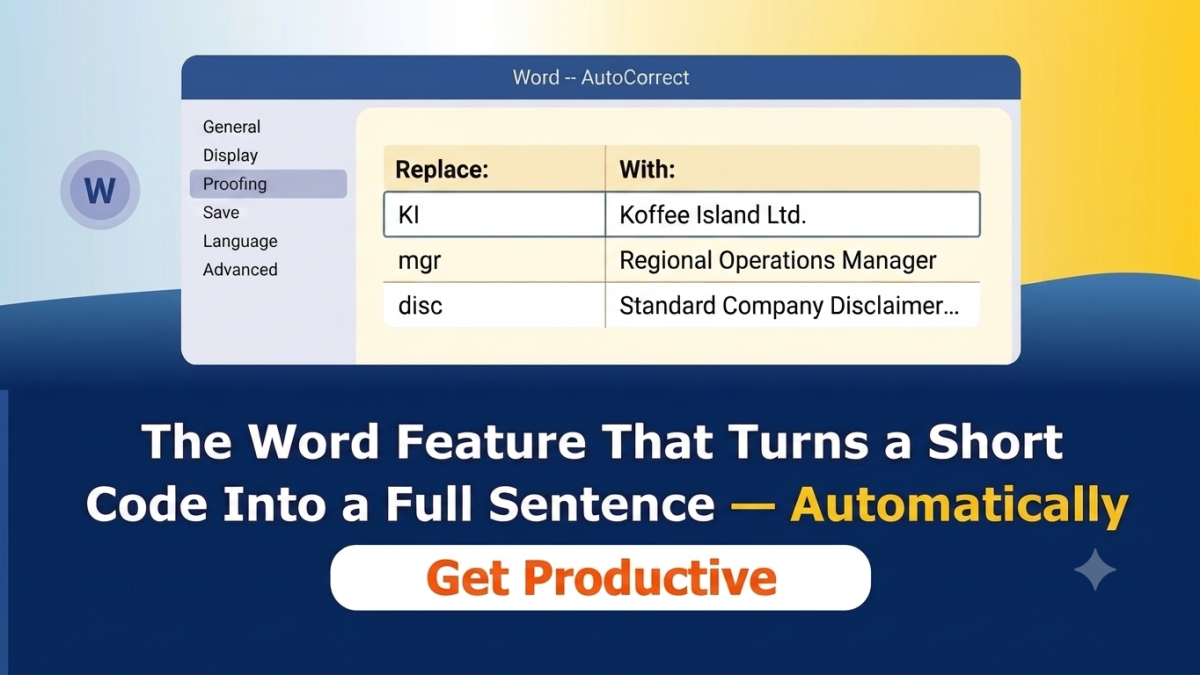
Type KI and get Koffee Island Ltd. Type mgr and get Regional Operations Manager. Type disc and get your full standard disclaimer. Word does the rest.
At Koffee Island, the PA to the regional director has shortcuts set up for the company's full registered name, the standard email sign-off, and three phrases she types in almost every operations report. She set them all up in about five minutes and hasn't typed any of them manually since.
How to set it up
In Word, go to File → Options → Proofing → AutoCorrect Options.
In the AutoCorrect tab, you'll see two columns: Replace and With. Type your shortcut in the Replace box and the full expanded text in the With box. Click Add, then OK.
That's it. The next time you type your shortcut and press space, Word replaces it automatically.
Why this helps
It's one of those features that sounds small until you actually use it consistently. The time saved isn't huge in any single moment — but across a week of documents and emails, it adds up. More importantly, it removes the low-level friction of typing the same things repeatedly, which makes the whole process of writing just feel a little easier.
It also improves consistency. When a phrase is stored as a shortcut rather than retyped from memory, it comes out the same way every time — which matters for names, disclaimers, and anything that needs to be accurate.
Quick win
Open Word and go to File → Options → Proofing → AutoCorrect Options. Think of one phrase you type regularly — a name, a sign-off, a standard line — and set up a shortcut for it right now.
Use it today. Notice how satisfying it is to never type that phrase manually again.
Ready to build more of these habits?
Microsoft 365 with Copilot — The Human Advantage is packed with practical tips and techniques like this one — the kind that take minutes to set up and save time every single week.
👉 Enrol in Microsoft 365 with Copilot — The Human Advantage
Categories: : autocorrect, Microsoft Word, Word