Struggling to Start a Presentation? Copilot and One Hidden Button Make It Easy
 Shelley Fishel Fishel
Two PowerPoint habits that cut the time it takes to go from brief to finished deck — one with Copilot, one already in your ribbon.
How to Build a PowerPoint Presentation Faster — From Brief to Slides Without the Blank-Page Panic
You know when someone says 'can we turn this into a deck?' and you open PowerPoint, stare at the blank slide, and spend the first ten minutes wondering where to even begin?
The content exists. The brief is there. You know roughly what the presentation needs to cover. But getting from that starting point to a properly structured set of slides always takes longer than it feels like it should.
Here's a faster way — and a small fix for the moment things go slightly wrong once you're in the deck.
Step 1: Let Copilot build the structure before you open PowerPoint
The biggest time drain when building a presentation isn't the design — it's the structure. Working out how many slides you need, what order they go in, and what each one should actually say takes real thinking time.
Copilot can do that thinking for you in about thirty seconds. The trick is to ask for an outline, not the slides themselves. Text first, design second.
At Koffee Island, the training coordinator uses this every time she's asked to put together a presentation — whether it's a supplier briefing, a new starter induction, or a regional update. She pastes the brief into Copilot, runs the prompt, and gets a complete slide-by-slide structure back in under a minute. Then she copies it straight into PowerPoint as her starting point.
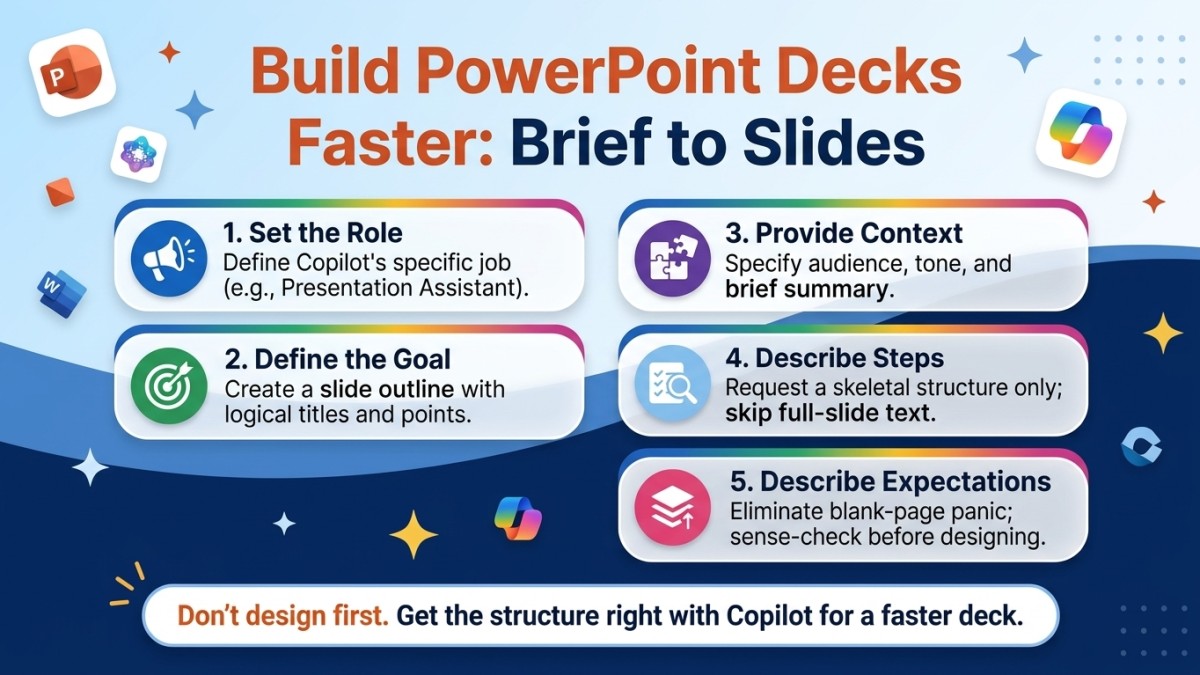
The Copilot prompt:
Role: Acting as my presentation assistant
Goal: Create a slide outline from the brief below
Context: Audience = team or client; keep the wording concise and action-focused
Steps: Propose slide titles with three supporting bullets per slide
Expectations: Output text only (titles + bullets), not full slides
What comes back is a clean, structured outline — slide titles in logical order, with three supporting bullets under each one. It's not the finished presentation, but it's something infinitely better than a blank slide: a clear skeleton you can build from, adjust, and sanity-check before you've spent any time on design.
Why this helps
You skip the hardest part. The blank-page problem disappears. You're reacting to a structure rather than creating one from nothing — and reacting is always faster.
You can sense-check before designing. Because Copilot outputs text only, you can share the outline with a colleague or stakeholder before committing to any layout. Changing a structure at the outline stage takes seconds; changing it once the slides are designed takes considerably longer.
It works for any brief. Short briefing note, rough bullet list, even a few sentences of context — as long as Copilot has something to work with, it can build a structure from it.
Step 2: Use Reset Slide when layouts go wrong
Here's a scenario that happens to almost everyone who works in PowerPoint regularly.
You paste some content into a slide — from another deck, from Word, from an email — and suddenly the layout looks off. Text is in the wrong place, a placeholder has shifted, the spacing feels wrong. You start manually dragging things back into position, which takes longer than it should and never quite looks right.
There's a button that fixes this in one click, and most people have never used it.
Reset Slide reapplies the slide's original layout without removing any of your content. Everything snaps back into the position it was designed to be in.
How to use it: In PowerPoint, go to the Home tab and click Reset in the Slides group. That's it.
At Koffee Island, the ops manager discovered Reset Slide during a particularly frustrating afternoon of trying to realign a template slide that had been copied and edited too many times. She clicked it as a last resort, everything clicked back into place, and she's used it ever since — usually before spending more than about thirty seconds trying to fix a layout manually.
Why this helps
Layout issues in PowerPoint are one of those small frustrations that eat disproportionate amounts of time. You know the slide should look right, you can see it doesn't, and fiddling with individual elements rarely gets you back to where you started.
Reset Slide essentially says: whatever happened to this slide, let's start the layout from scratch — but keep everything you've typed. For pasted content especially, it's a genuine time saver.
Quick win
Next time you're building a deck: Before opening PowerPoint, paste your brief into Copilot with the prompt above. Copy the outline it produces. Open PowerPoint and use that structure as your starting point — one slide per title.
Next time a slide looks wrong: Before spending more than 30 seconds trying to fix it manually, go to Home → Reset. See if that sorts it first.
Two habits, noticeably less friction every time you build a presentation.
Want to feel this confident across all of Microsoft 365?
Microsoft 365 with Copilot — The Human Advantage teaches you the practical skills that make tools like PowerPoint and Copilot work properly together — in your real work, not just in theory.
👉 Enrol in Microsoft 365 with Copilot — The Human Advantage
Categories: : Copilot, Microsoft 365 with Copilot, presentations