Spacing Issues in Word? This Hidden Button Reveals What's Really Going On
 Shelley Fishel Fishel
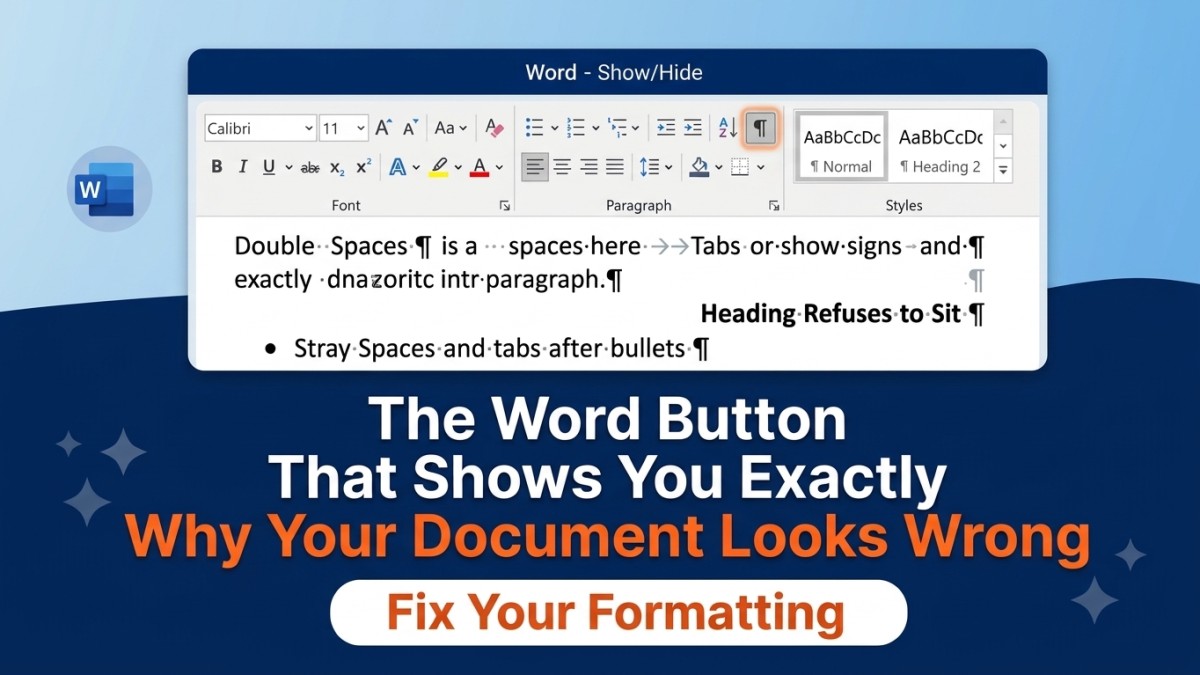
Strange spacing, jumping bullets, stubborn headings? Show/Hide formatting marks in Word reveals the hidden characters causing the problem
The Word Button That Shows You Exactly Why Your Document Looks Wrong
You know when a Word document has strange spacing, bullets that won't behave, headings that refuse to sit where they should, or a gap between paragraphs that you can't seem to remove no matter what you do?
You can see something is wrong. You just can't see why it's wrong. And the more you click around trying to fix it, the worse it seems to get.
There's a button in Word that makes the invisible visible — and once you've used it, you'll wonder how you ever troubleshot a formatting problem without it.
What Show/Hide actually shows you
Every document in Word contains hidden characters that control how text flows, where paragraphs end, where spaces sit, and how formatting is applied. Normally you never see these characters — which is exactly why mysterious layout problems are so hard to diagnose.
The Show/Hide button (the paragraph symbol on your Home tab) reveals all of them at once: every paragraph mark shows you where one paragraph ends and the next begins — including empty paragraphs that are creating unwanted gaps. Every space appears as a small dot between words — making it instantly obvious if there are double spaces, trailing spaces, or gaps that shouldn't be there. Tab characters appear as arrows — showing you if something is being indented with tabs rather than proper paragraph formatting. Section breaks, page breaks, and column breaks become visible — so you can see structural formatting that's affecting the whole document layout.
At Koffee Island, the training coordinator maintains the team handbook in Word — a long document that gets updated regularly by multiple people. Every few months it develops mysterious spacing issues and heading inconsistencies. Before she discovered Show/Hide, fixing it took an afternoon. Now she turns on Show/Hide, scans for the rogue paragraph marks and extra spaces, removes them, and the document sorts itself out in minutes.
How to use it
In Word, go to the Home tab and look for the paragraph symbol (¶) button in the Paragraph group. Click it to turn formatting marks on. Click it again to turn them off.
That's all there is to it. The marks appear immediately and disappear just as quickly — they don't print, they don't affect your document, they're just a diagnostic view.
Why this helps
Most Word layout problems aren't caused by complex formatting issues — they're caused by extra paragraph marks, stray spaces, or hidden characters that accumulated during editing. Once you can see them, fixing them takes seconds.
It also helps when you receive a document from someone else that looks fine on their machine but behaves strangely on yours. Show/Hide usually reveals the culprit within about thirty seconds of switching it on.
Quick win
Open any Word document that has a layout issue — strange spacing, a gap that won't close, a bullet that won't align. Click Home → ¶ to turn on Show/Hide.
Look at what appears. Find the extra paragraph mark, the stray space, the tab character that's causing the problem. Delete it.
Turn Show/Hide off again. Notice how satisfying it is when the document suddenly looks right.
Ready to get more of these hidden gems?
Microsoft 365 with Copilot — The Human Advantage is full of practical skills like this — the features already in your tools that most people walk straight past, and that make your working day noticeably easier once you know they're there.
👉 Enrol in Microsoft 365 with Copilot — The Human Advantage
Categories: : Microsoft Word, Word, spacing