Worried About How That Email Will Land? Here Are Two Ways to Get It Right
 Shelley Fishel Fishel
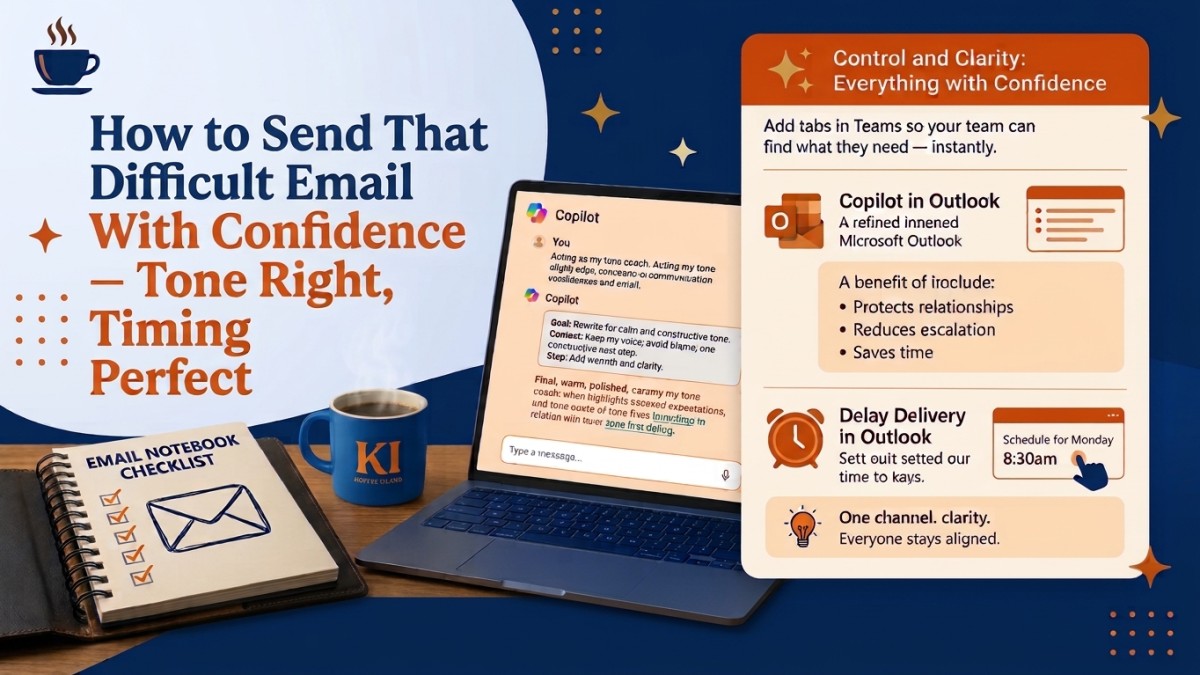
The wrong tone or timing can damage a professional relationship. Here's how Microsoft 365 helps you get both right before you hit send.
How to Send That Difficult Email With Confidence — Tone Right, Timing Perfect
You know when you've written an email that you know needs sending — but something makes you hesitate before hitting Send?
Maybe the content is fine but the tone feels slightly off. You've read it back and it sounds a bit more abrupt than you intended, or a bit defensive, or just not quite warm enough given the relationship. You know what you mean — you're just not sure it reads that way.
Or maybe the issue isn't the message at all; it's the timing. You've drafted it at 7pm on a Friday, and sending it now would be fine technically — but it doesn't feel right. You don't want to set an expectation you can't maintain.
Both of these problems have a clean fix — and together they give you a lot more confidence about the emails you send.
Fix 1: Let Copilot tune the tone of a sensitive message
There's an important distinction to make here: Copilot isn't rewriting your thinking. You've worked out what you want to say. The content is right. What you're asking Copilot to do is help you say it in a way that lands the way you intend — calm, clear, constructive, without any of the edge that crept in while you were writing.
At Koffee Island, the area operations manager uses this whenever she needs to send a message about a performance issue, a missed deadline, or a disagreement between teams. The content is always hers — she knows the situation, she knows what needs to happen next. But she pastes the draft into Copilot and runs this prompt before sending anything where the relationship matters:
The Copilot prompt:
Role: Acting as my tone coach
Goal: Rewrite this draft to sound calm, clear, and forward-looking
Context: Keep my voice; avoid blame; include one constructive next step
Steps: Rewrite the message with warmth and clarity
Expectations: Final version only; no more than 120 words
What comes back keeps her words and her meaning — but strips out anything that could be read as blaming or reactive, and adds a forward-looking next step that keeps things moving rather than getting stuck. She reads it, adjusts anything that doesn't sound like her, and sends it.
Why this helps
It protects professional relationships. Tone mismatches in written communication are one of the most common sources of unnecessary conflict at work. A message that reads as dismissive when it was meant to be efficient, or blaming when it was meant to be factual, can damage a working relationship disproportionately.
It reduces escalation risk. A well-toned message that acknowledges the situation and offers a constructive next step is far less likely to generate a defensive response than one that doesn't. Copilot consistently adds that forward-looking element.
It's faster than rewriting yourself. Staring at a draft you're not happy with and trying to rework it from inside your own head is surprisingly hard — especially when emotions are involved. Copilot gives you a fresh version to react to, which is always faster than starting again.
Fix 2: Control when the email arrives with Delay Delivery
The second issue — timing — is a different kind of problem, but equally solvable.
Most people work at odd hours sometimes. Early mornings, late evenings, weekends when a thought occurs to them. Sending a work email at 11pm isn't wrong — but for some recipients, it sets an uncomfortable expectation. It can also feel pressuring if the recipient is someone more junior, or someone who takes a healthy separation between work and personal time seriously.
Delay Delivery solves this cleanly. You write the email whenever it suits you, and you tell Outlook to send it at a more considered time.
How to use it: In Outlook, open a new message and write it as normal. Before sending, go to Options → Delay Delivery. Set the date and time you want it to arrive, then click Send. The email sits in your Outbox and sends automatically at the time you chose — you don't need to be at your computer.
At Koffee Island, the training coordinator often drafts communications late on Sunday evenings when she has thinking time. She writes everything then — supplier updates, course reminders, team briefings — and delays them all to send at 8:30am Monday morning. Her recipients experience her as someone who starts the week well-organised and communicates clearly during working hours. The reality is she does her best thinking on Sunday evenings and has simply stopped letting that be everyone else's problem.
Why this helps
It keeps communication feeling professional and well-considered, regardless of when you actually wrote it. It also helps with time zones — if you work with colleagues or clients in different regions, Delay Delivery means you can schedule messages to arrive at a sensible time for them rather than whenever it happened to be for you.
Quick win
Today: Take one email in your drafts — or the next one you write — that feels slightly delicate. Paste it into Copilot with the tone prompt above. Read what comes back. Notice what changed.
Tonight or this weekend: If you find yourself drafting work emails outside normal hours, try delaying one to send tomorrow at 9am. See how it feels to write when the inspiration strikes, without sending before it's the right moment.
Two small changes. A noticeably more considered approach to written communication.
Want to communicate with this kind of confidence every day?
Microsoft 365 with Copilot — The Human Advantage is a practical programme that teaches you to use Copilot and Microsoft 365 in ways that genuinely improve your working day — including how you communicate, when you communicate, and how it lands.
👉 Enrol in Microsoft 365 with Copilot — The Human Advantage
Categories: : Copilot, emails, inbox, Microsoft 365 with Copilot