Still Scrambling Before Meetings? Here's the Two-Step Fix in Microsoft 365
 Shelley Fishel Fishel
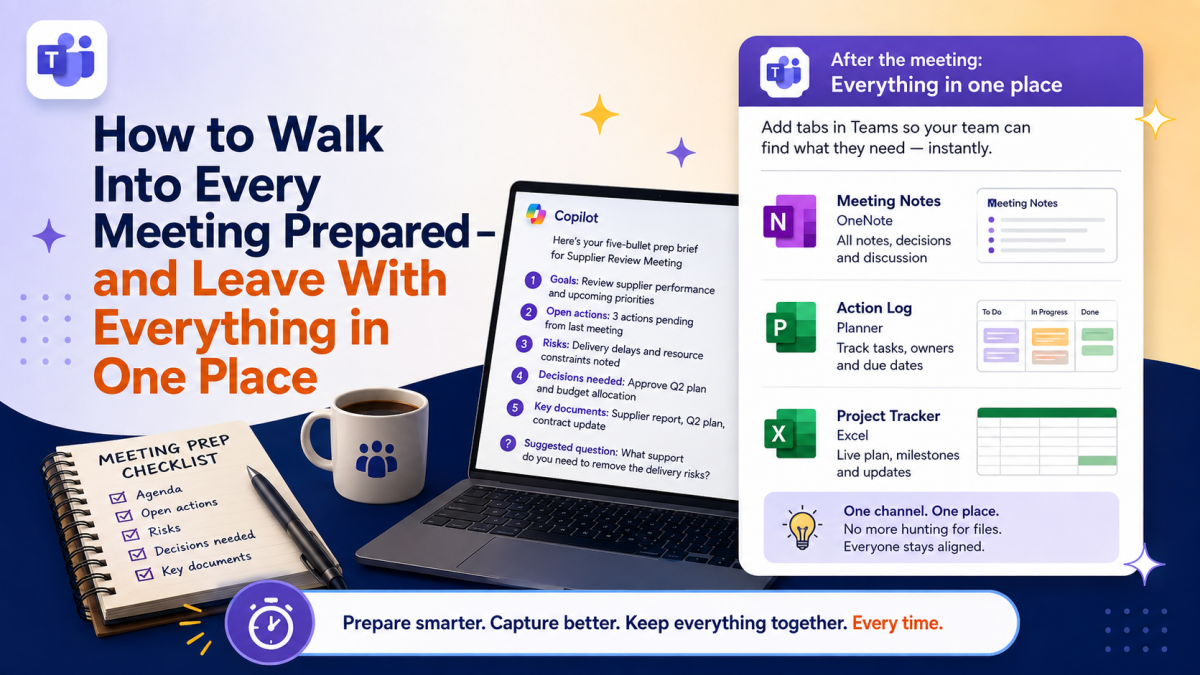
Stop juggling emails and files before meetings. This Copilot prep habit and Teams tab tip will change how your meetings feel.
How to Walk Into Every Meeting Prepared — and Leave With Everything in One Place
You know when a meeting is about to start and you're frantically scanning emails, trying to remember what was agreed last time, and pulling up a document you're not even sure is the right version?
It's a stressful few minutes. And it often means you spend the first part of the meeting catching up instead of contributing.
Then on the flip side — you know when a meeting ends well, decisions get made, actions are clear... and then over the next few days people keep sending the same document link in different chats, or asking where the notes are?
Both of those problems are solvable. One takes about two minutes with Copilot. The other takes thirty seconds in Teams and then just works.
Before the meeting: a five-bullet prep brief with Copilot
The goal here isn't a detailed report — it's a short, focused pre-read that gets your head in the right place about an hour before the meeting starts.
At Koffee Island, the EA to the regional director runs this prompt before every supplier review, planning session, and stakeholder call. It takes her two minutes to set up and means she walks in clear on what matters, what's open, and what question she should be ready to ask.
The Copilot prompt:
Role: Acting as my briefing assistant
Goal: Create a five-bullet prep brief for [meeting name]
Context: Use recent emails and files related to [topic]
Steps: Include goals, open actions, risks, decisions needed, and key documents
Expectations: Five bullets only, plus one suggested question to ask
Copilot scans your recent emails and files related to the topic, and comes back with five focused bullets covering everything you need — plus one suggested question to have ready. That last part is quietly useful: having a good question prepared means you contribute more confidently even when the meeting moves fast.
Why this helps
You stop arriving cold. Even a quick scan of five well-chosen bullets puts you in a completely different headspace than opening a meeting with no preparation at all.
You catch open actions before they become problems. The prompt specifically surfaces anything that hasn't been resolved yet — so you're not caught off guard by something that should have been done.
It scales to any meeting. Supplier call, internal review, client update — just swap the meeting name and topic in the prompt and it works for all of them.
After the meeting: a tab in Teams where everything lives
Here's a small change that makes a big difference to how a team operates after a meeting.
Most Teams channels have a conversation tab and a files tab, and that's where things stay. But Teams lets you pin almost anything as a tab at the top of a channel — a specific document, a OneNote notebook, a Planner board, a shared spreadsheet.
When you do that, there's suddenly one obvious place everyone goes to find the notes, the project plan, or the action tracker. No more 'where's the document?' messages. No more sending the same link in four different conversations.
At Koffee Island, the operations team added three tabs to their main channel after their weekly planning meeting: the running action log in OneNote, the project tracker in Planner, and the supplier schedule in Excel. Everyone knows where to look. New team members get up to speed in minutes. The 'where's that file?' question has essentially disappeared.
How to add a tab: In any Teams channel, click the + icon at the top of the channel (next to the existing tabs). Choose the app you want — Files, OneNote, Planner, Excel, or dozens of others. Follow the short setup, and the tab appears permanently at the top of the channel.
Why this helps
Before tabs, team resources live in files lists, chat history, and people's personal OneDrives — scattered across places that require hunting. After tabs, the most important resources are permanently visible at the top of the channel where the work actually happens.
It's one of those small changes that makes a team feel noticeably more organised without anyone having to work harder.
Quick win
An hour before your next meeting: Run the Copilot prep prompt above. Read the five bullets. Have the suggested question ready. Notice how differently you walk into the room.
After that meeting: Open the Teams channel your team uses for that project. Click + and add the meeting notes or project plan as a tab. Tell your team it's there.
Two small actions. Meetings that feel more prepared and less chaotic — every time.
Want to build a full toolkit of habits like these?
Microsoft 365 with Copilot — The Human Advantage is a practical programme that teaches you how to use Microsoft 365 and Copilot in the way they were actually designed to be used — together, in your real work, making a real difference.
👉 Enrol in Microsoft 365 with Copilot — The Human Advantage
Categories: : Copilot, meeting, Microsoft 365 with Copilot, Microsoft Teams, preparation, teams