Does Everyone Leave Your Meetings With the Same Understanding? Here's How to Make Sure
 Shelley Fishel Fishel
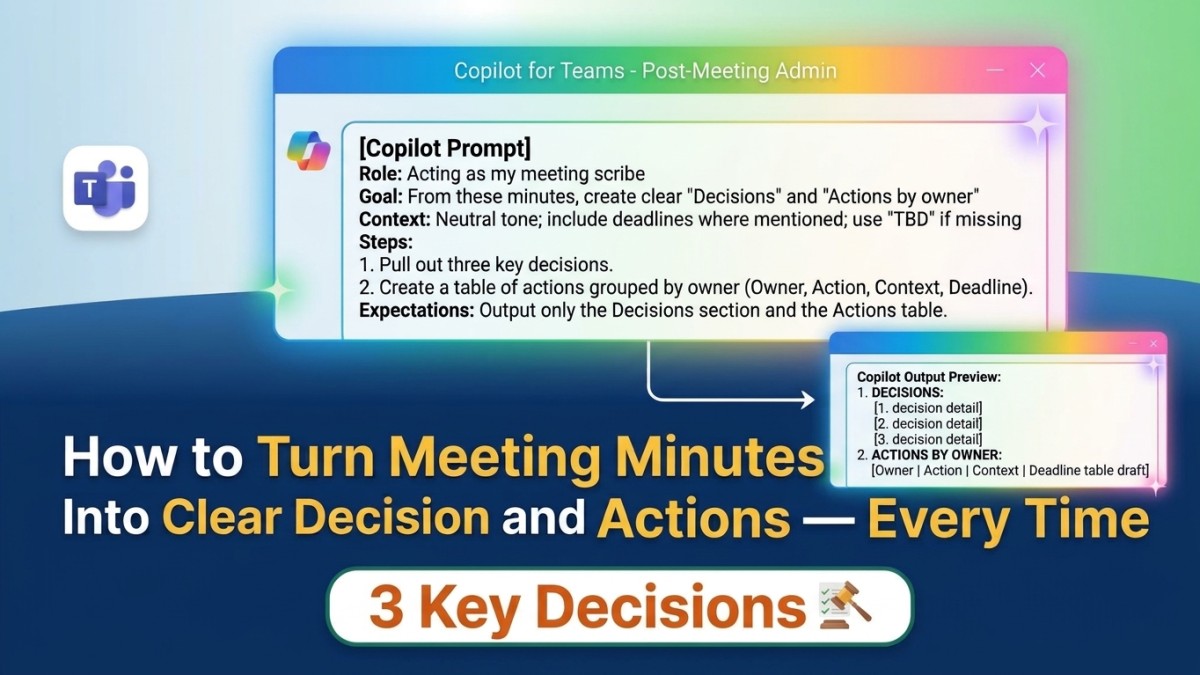
Unclear minutes cause confusion and missed follow-ups. This Copilot prompt and one Teams trick fix both, right after the meeting ends.
How to Turn Meeting Minutes Into Clear Decisions and Actions — Every Time
You know when a meeting ends and everyone leaves with a slightly different understanding of what was actually decided?
The notes exist. The meeting happened. But somehow the decisions are buried in discussion, the actions are implied rather than stated, and by next week there'll be at least one conversation that starts with 'I thought we agreed...'
This is surprisingly common — and surprisingly easy to fix. One Copilot prompt after the meeting creates a clear, shared record of what was decided and who's doing what. And one Teams filter helps you stay on top of everything that comes back to you afterwards.
After the meeting: extract decisions and actions with Copilot
The raw notes from most meetings are a mix of discussion, context, tangents, and — somewhere in there — the things that actually matter: what was decided, and what now needs to happen.
What you need is a version that separates those two things clearly, so whoever reads it comes away with the same understanding. That's exactly what this prompt does.
At Koffee Island, the regional operations manager runs this immediately after every planning meeting. She pastes the minutes or her rough notes into Copilot and gets back two clean outputs: a list of the key decisions made, and a table of actions grouped by owner with deadlines included. She shares that version with the team instead of the raw notes — and the 'I thought we agreed...' conversations have almost entirely stopped.
The Copilot prompt:
Role: Acting as my meeting scribe
Goal: From these minutes, create clear "Decisions" and "Actions by owner"
Context: Neutral tone; include deadlines where mentioned; use "TBD" if missing
Steps: Pull out three key decisions, then create a table of actions grouped by owner
Expectations: Output only the Decisions section and the Actions table
Copilot returns two sections: a short, numbered list of the key decisions (no discussion, just what was agreed), followed by a table with columns for Owner, Action, Context, and Deadline. It's precise, readable, and immediately useful.
Why this helps
Everyone leaves with the same understanding. When the decisions are written down clearly — not buried in narrative — there's no room for different interpretations to develop over the following days.
Follow-ups become much easier. A named action table means accountability is explicit. When something isn't done by the deadline, the conversation is straightforward rather than murky.
It takes about two minutes. The hardest part of post-meeting admin isn't writing the output — it's knowing what to extract. Copilot handles that. You just paste and share.
Staying on top of what comes back: filter Teams for @mentions
Once the actions are shared and the meeting follow-up emails start landing, Teams can quickly feel like a lot of noise — channel updates, general messages, things that don't need your immediate attention mixed in with things that do.
The @mentions filter cuts straight through that.
When someone specifically needs your attention in Teams — whether that's a reply to an action item, a question on a decision, or a request for input — they'll @mention you. Filtering your Activity feed to show only @mentions means you see exactly what requires a response, without having to scroll through everything else.
How to use it: In Teams, go to Activity (the bell icon on the left). Click Filter at the top right of the Activity panel, then select @ Mentions. Your feed instantly shows only the messages where you've been directly referenced.
At Koffee Island, the project lead uses this every morning as part of her daily check-in. Rather than scanning through all channel activity, she opens Activity, filters to @mentions, clears anything she's already responded to, and starts the day knowing exactly where she's needed.
Why this helps
Teams is designed for team communication — which means a lot of activity that isn't always relevant to you specifically. The @mentions filter makes a clear distinction between 'you need to see this' and 'this is happening.' That distinction matters when you're trying to focus.
It also means things don't get missed. When an important follow-up from a meeting lands in a busy channel, filtering for your @mention makes sure you see it even if the rest of the conversation has moved on.
Quick win
After your next meeting: Paste the notes or minutes into Copilot with the prompt above. Share the Decisions and Actions output with the team instead of the raw notes. Notice how much cleaner the follow-up is.
Today in Teams: Go to Activity, click Filter, select @Mentions. Clear everything you've already seen. Use that view as your daily 'what needs my attention' check-in.
Two habits. Meetings that actually produce clarity — and a way to stay on top of what follows.
Want to run your working week with this kind of clarity?
Microsoft 365 with Copilot — The Human Advantage is a practical programme built around exactly this kind of real-world skill — the habits that make meetings, communication, and follow-through genuinely work better.
👉 Enrol in Microsoft 365 with Copilot — The Human Advantage
Categories: : Blog, Copilot, meeting, Microsoft 365 with Copilot, minutes