Why Does Clicking on Objects in Word Feel So Hard? This Fixes It
 Shelley Fishel Fishel
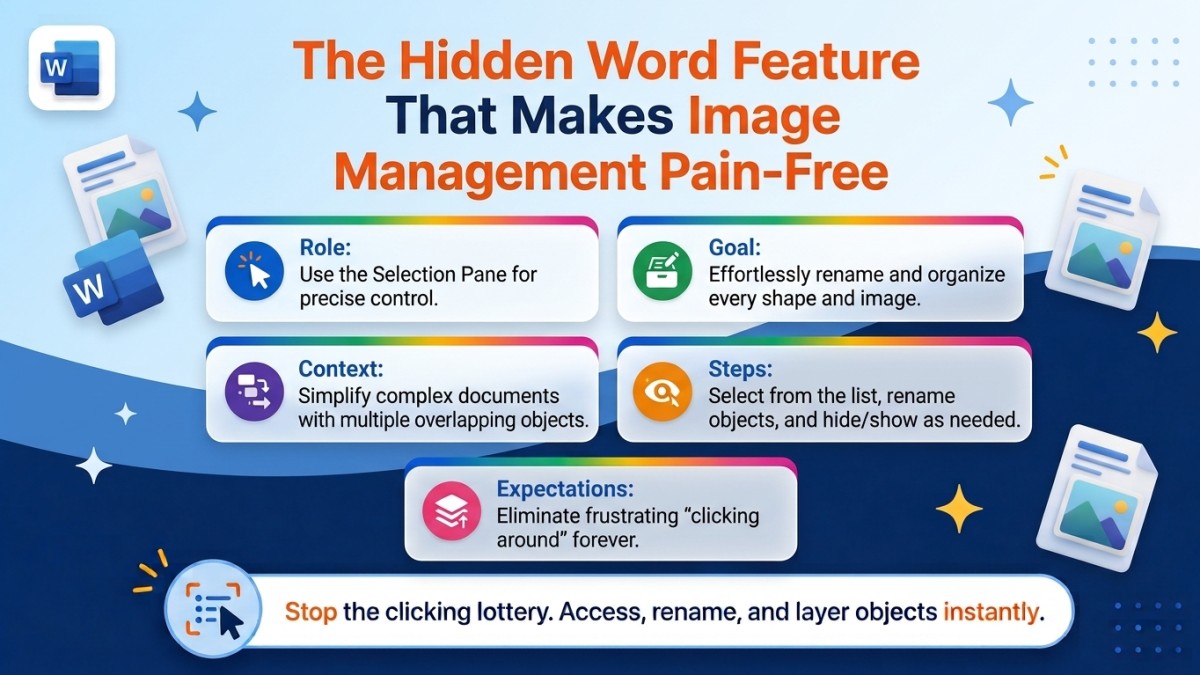
Stop clicking around trying to grab that image or shape in Word. The Selection Pane shows you everything in one place.
The Word Feature That Makes Images and Shapes Easy to Manage
You know when you're working on a Word document with a few images or shapes in it, and clicking on the one you actually want feels like a lottery?
You click where you think it is. You get the wrong object. You click again. You accidentally move something. You undo. You try again. Ten minutes later you've done approximately nothing.
There's a feature in Word that solves this entirely — and it's so tucked away that most people have never stumbled across it.
What the Selection Pane does
The Selection Pane gives you a complete list of every object in your document — every image, shape, text box, and icon — in one tidy panel on the right-hand side of the screen.
From there, you can click any object in the list to select it precisely — no clicking around on the page. You can rename objects so you can actually tell what's what ('Logo', 'Callout box', 'Section divider' instead of 'Picture 3', 'Rectangle 14'). You can hide and show objects individually using the eye icon — useful when you're trying to work around something without deleting it. And you can reorder objects by dragging them up and down in the list, which changes their layering order on the page.
At Koffee Island, the training coordinator produces a monthly one-pager for the regional team — a Word document with the brand logo, a few icons, a couple of text boxes, and a decorative shape at the top. Before she discovered the Selection Pane, laying it out took three times as long as it needed to. Now she opens it at the start of any document with more than two objects and works entirely from the list.
How to open it
In Word, go to the Home tab. Click Select on the far right of the ribbon, then choose Selection Pane from the dropdown.
The panel opens on the right. Every object in the document appears in the list. Click one to select it on the page.
Why this helps
Working with objects in Word without the Selection Pane is like trying to find something in a filing cabinet with no labels — you know it's in there somewhere, you just have to dig until you find it.
With the Selection Pane open, everything is labelled, visible, and one click away. For documents with more than a handful of objects, it's genuinely one of those features that makes you wonder how you managed without it.
Quick win
Open any Word document that has images, shapes, or text boxes in it. Go to Home → Select → Selection Pane. Look at the list that appears.
Pick one object and rename it to something meaningful — 'header image,' 'pull quote box,' whatever it actually is. Then try selecting objects from the list instead of clicking on the page.
Notice how much less frustrating the whole thing becomes.
Ready to discover more of these hidden gems?
Microsoft 365 with Copilot — The Human Advantage is full of practical skills and features like this one — the things that are already in your tools, waiting to make your working day easier.
👉 Enrol in Microsoft 365 with Copilot — The Human Advantage
Categories: : Microsoft Word, images, shapes