Still Sending Bullet Lists as Updates? There's a Better Way With Copilot
 Shelley Fishel Fishel
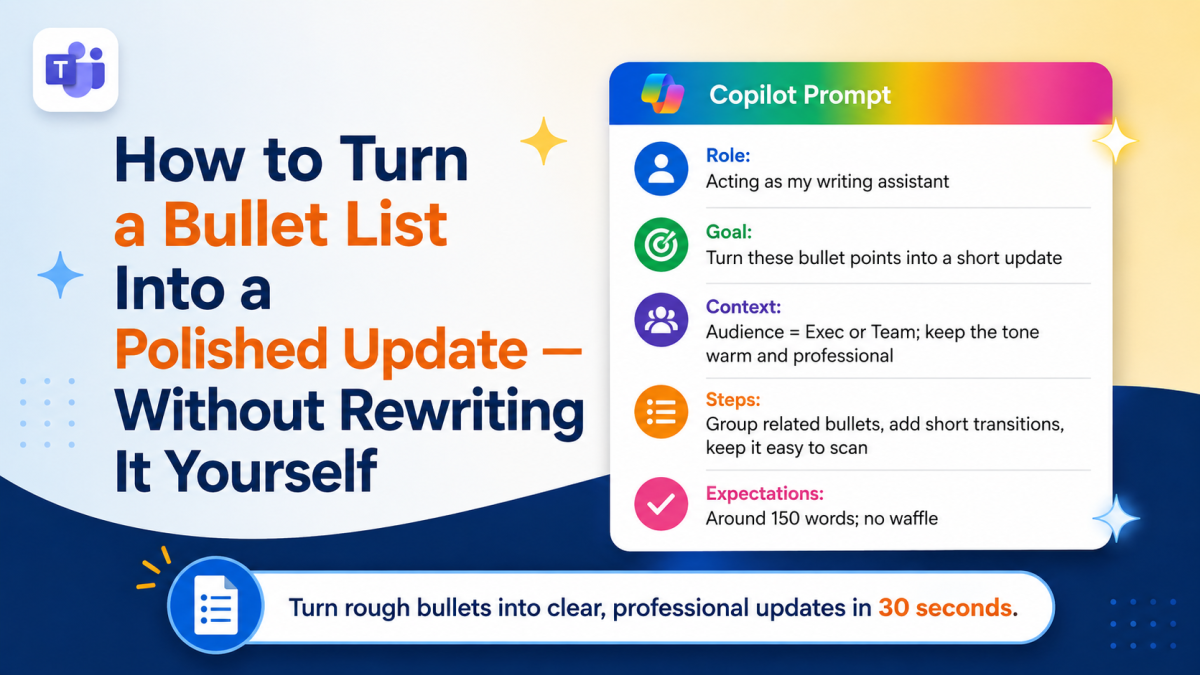
Stop rewriting bullet points into prose by hand. Copilot does it in one prompt — warm, professional, and ready to send.
How to Turn a Bullet List Into a Polished Update — Without Rewriting It Yourself
You know when you've finished jotting down the key points for an update and the bullets are all there but you wouldn't feel great sending them on as they are?
Bullets are brilliant for capturing information quickly. But a bullet list sent as a status update to your exec or your team can feel rushed, hard to read, and like you ran out of time. What you actually need is a short, flowing paragraph or two that says the same things but sounds finished.
That used to mean sitting down and rewriting. Now it takes about thirty seconds.
Why bullet lists don't always land
The problem with sending a bullet list as a written update isn't the content — it's the format. Bullets force the reader to do all the connecting work. They see the points, but they have to figure out how those points relate to each other, what the overall picture is, and what you're actually saying.
Prose does that work for the reader. It creates flow, adds context between points, and signals that the update has been considered — not just jotted down and forwarded.
The challenge is that rewriting bullets into prose takes time and mental effort that you often don't have at the end of a busy day.
How to do it: the Copilot prompt
At Koffee Island, the marketing manager uses this every time she's pulling together a weekly update for the head of operations. She takes her bullet notes from the week — supplier status, campaign updates, team capacity — and pastes them into Copilot with this prompt:
The Copilot prompt:
Role: Acting as my writing assistant
Goal: Turn these bullet points into a short update
Context: Audience = Exec or Team; keep the tone warm and professional
Steps: Group related bullets, add short transitions, keep it easy to scan
Expectations: Around 150 words; no waffle
Copilot groups the related points, adds natural transitions between them, and returns a clean, readable update — warm in tone, professional in feel, and genuinely easy to scan.
She reads it through, tweaks anything that needs adjusting, and sends it. The whole process takes a fraction of the time the rewrite would have.
Why this helps
It sounds considered, not rushed. A well-structured paragraph update signals care and clarity, even when it was produced in under a minute.
You stop second-guessing your own writing. One of the hidden costs of writing updates is the time spent wondering if they sound right. Copilot gives you a solid first draft to react to, which is much faster than writing from a blank page.
It works for any audience. Adjust the Context line — swap 'Exec' for 'client' or 'board' — and the tone shifts accordingly.
Quick win
Find a bullet-heavy update you're about to send — a weekly status, a project note, a team update. Paste the bullets into Copilot with the prompt above. Read what comes back.
Chances are you'll want to send that version instead.
Want to use Copilot like this every day?
Microsoft 365 with Copilot — The Human Advantage teaches you the practical prompting habits that make Copilot genuinely useful for your real day-to-day work — not just for occasional experiments.
👉 Enrol in Microsoft 365 with Copilot — The Human Advantage
Categories: : bullet points, Copilot, lists, Microsoft 365 with Copilot