The OneNote Feature That Surfaces Your Action Items Instantly
 Shelley Fishel
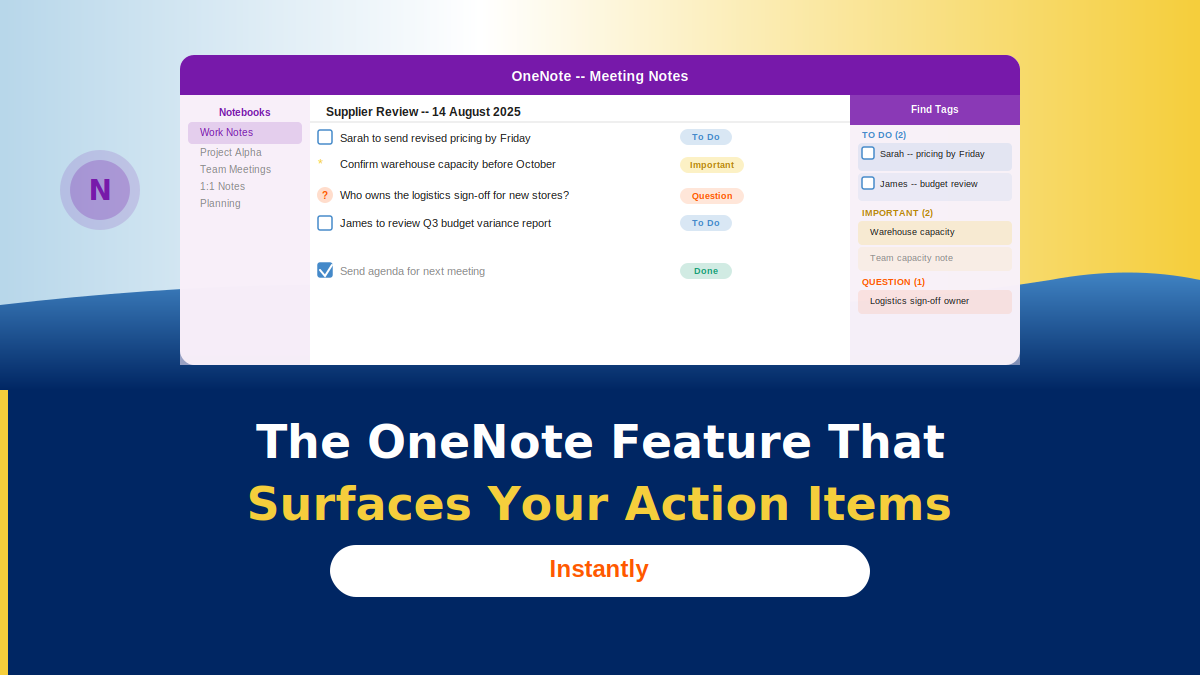
Stop scrolling through pages of notes to find what needs doing. OneNote’s tag system makes every action item instantly visible.
The OneNote Feature That Makes Action Items Impossible to Miss
You wrote it all down. The decision, the action, the question someone raised that needed following up. It’s all in your OneNote meeting page.
The problem is it’s also mixed in with three paragraphs of context, a couple of figures someone mentioned, and a note about the coffee order.
OneNote tags solve this quietly and completely.
What OneNote tags do
Tags let you mark specific lines in your notes as you write them — flagging them as a To Do, a Question, or an Important point. They’re visual markers that sit next to the text, but the real power comes from what you can do with them afterwards.
The Find Tags feature collects every tagged item across your entire notebook — all pages, all sections — and displays them in one summary panel. Your action items surface instantly, no matter where in your notes they live.
How the Koffee Island EA uses it
The EA at Koffee Island attends back-to-back meetings on Mondays. Each meeting gets its own OneNote page, and throughout each meeting she tags actions with the To Do checkbox and open questions with the Question tag.
At the end of the morning, she opens Find Tags and has a complete list of every action and unresolved question from every meeting — in one place, ready to action or delegate. What used to take 20 minutes of re-reading notes takes about 30 seconds.
How to use OneNote tags
To tag a line as you’re writing:
- Click on the line you want to tag
- Go to Home → Tags
- Choose your tag: To Do (checkbox), Question, Important, or others
To review all your tagged items:
- Go to Home → Find Tags
- A summary panel opens on the right showing every tagged item across the notebook
- Filter by tag type, date range, or section as needed
Why this works better than highlighting or bold text
Highlighting and bold are visual — you still have to scroll through and read to find them. Tags are structural. OneNote knows what they mean, which is why Find Tags can collect them automatically.
It’s a small habit shift — tagging as you write rather than after — that makes a significant difference to how quickly you can act on your notes.
Quick win
Open your most recent meeting page in OneNote. Find three action items in the notes and tag each one with the To Do tag.
Then open Find Tags and watch them appear in the summary panel. That’s the habit — tag as you go, review with Find Tags, nothing slips through.
Want to build more workflows like this?
Cohort 5 of Microsoft 365 with Copilot — The Human Advantage starts on 8th September, with live online sessions every Tuesday:
- Tuesday 8th September
- Tuesday 15th September
- Tuesday 22nd September
- Tuesday 29th September
A practical, real-world programme designed specifically for assistants and executive assistants who want to work smarter with Microsoft 365 and Copilot.
Categories: : meeting notes, OneNote, tags