Does Anything Actually Get Followed Up After a Teams Chat?
 Shelley Fishel Fishel
Actions drift in Teams because chats are easy to lose. Here's how Copilot and one underused feature fix that in minutes.
How to Stop Losing Actions and Important Conversations in Microsoft Teams
You know when something gets agreed in a Teams chat — a deadline, a next step, a 'yes, go ahead' — and then a week later nobody can quite remember what was decided, or even find the conversation?
It's not that anyone was being careless. It's just that Teams chats move fast, threads pile up, and the thing you agreed on Tuesday is buried under seventeen other messages by Thursday.
Two small habits fix this completely. One takes about 90 seconds per conversation. The other takes two minutes to set up once and then just works in the background.
Habit 1: Turn the chat into a follow-up email with Copilot
The most reliable way to make sure something agreed in Teams actually happens is to get it out of the chat and into an email — with the key asks clearly stated and any dates confirmed.
That sounds like extra work. With Copilot, it takes about a minute.
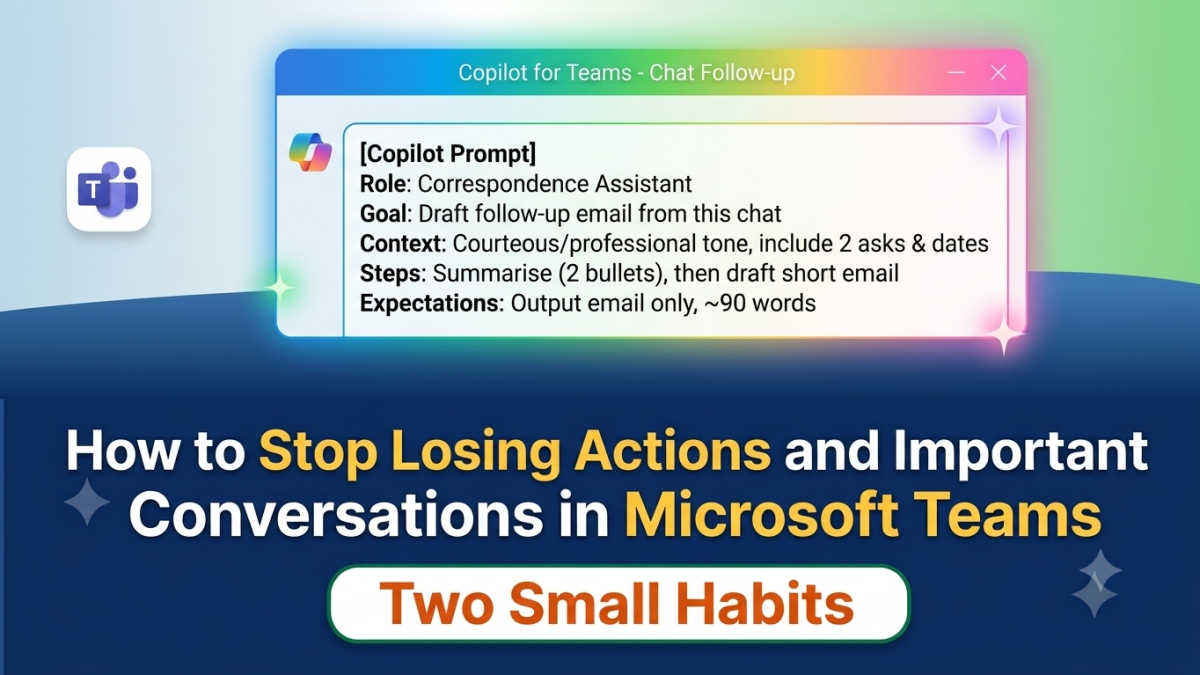
At Koffee Island, the PA to the operations director uses this every time an important decision or action is agreed in a Teams chat. She copies the relevant part of the conversation, pastes it into Copilot, and runs this prompt:
The Copilot prompt:
Role: Acting as my correspondence assistant
Goal: Draft a short follow-up email based on this chat excerpt
Context: Keep the tone courteous and professional; include two clear asks and any dates mentioned
Steps: Summarise the chat into two bullets, then draft a short follow-up email
Expectations: Output the email only; keep it around 90 words
Copilot reads the chat, pulls out what was agreed, and drafts a clean follow-up email — two bullets summarising the discussion, then a short professional message with the key asks stated clearly.
She reviews it, adjusts anything needed, and sends it. The whole thing takes less time than typing the email from scratch, and the result is clearer.
Why this helps
Things stop drifting. When an action is in an email — with names, asks, and dates — it's much harder to ignore or forget than something buried in a chat thread.
Everyone is aligned. The follow-up email becomes the record of what was agreed. No 'I thought you meant...' conversations a week later.
It takes almost no effort. Once you have the prompt, it's a 60-second habit after any chat where something important was decided.
Habit 2: Pin your most important chats so they're always visible
This one is even simpler — and it makes a noticeable difference to how calm Teams feels on a busy day.
By default, Teams shows your chats in order of most recent activity. Which means the conversation you need to check back on keeps getting pushed down the list by everything else coming in.
Pinning fixes that. A pinned chat stays at the top of your list permanently, regardless of what comes in after it. You can pin multiple chats and drag them into whatever order makes sense to you.
At Koffee Island, the regional manager keeps three chats permanently pinned at the top of her Teams: the ongoing supplier negotiation, the internal ops channel for her direct team, and a one-to-one with her line manager. Everything else flows through the list as normal. She never has to scroll for the conversations that matter most.
How to pin a chat: In Teams, hover over the chat you want to pin. Click the … (more options) menu, then choose Pin. The chat moves to the top of your list immediately. Drag pinned chats to reorder them however you like. To unpin, hover over the chat, click … again, and choose Unpin.
Why this helps
Flags and folders work for email. For Teams chats, pinning is the equivalent — a lightweight way to keep your priority conversations visible without any ongoing admin.
The difference it makes is subtle but real. When the conversations that matter are always at the top of the list, you spend less time hunting, less time worrying you've missed something, and more time actually working.
Quick win
Right now: Open Teams and pin the two or three chats you find yourself looking for most often. Drag them into priority order. That's your permanent priority list — no maintenance required.
After your next important Teams conversation: Copy the key part of the chat, paste it into Copilot, and run the prompt above. Send the follow-up email before you move on to the next thing.
Two minutes of setup. Noticeably fewer things falling through the cracks.
Ready to build more habits like these?
Microsoft 365 with Copilot — The Human Advantage is a practical programme built around exactly this kind of real-world skill — the habits and workflows that make Microsoft 365 genuinely useful in your day-to-day work, not just in theory.
👉 Enrol in Microsoft 365 with Copilot — The Human Advantage
Categories: : Microsoft Teams, actions, teams