How to Present With Confidence — Speaker Notes From Copilot and Slides That Stay Tidy
 Shelley Fishel Fishel
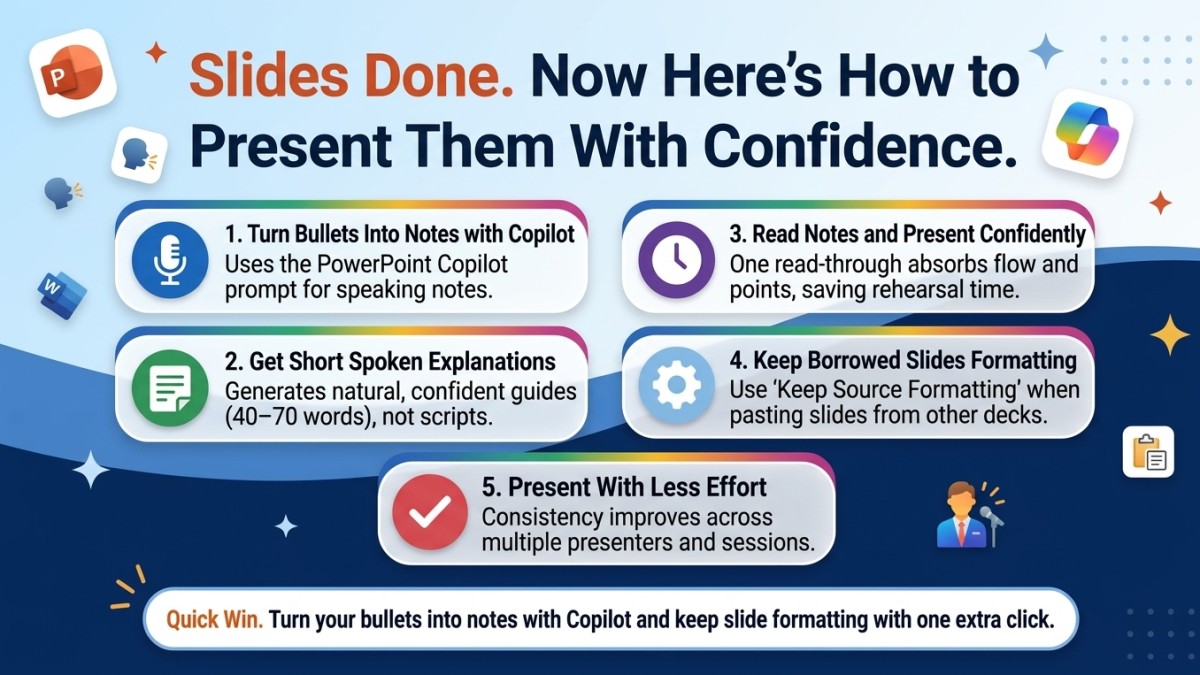
Use Copilot to turn slide bullets into natural speaker notes, and keep formatting intact when pasting slides. Present better, faster.
Slides Done. Now Here's How to Present Them With Confidence.
You know when your slides are finished, they look good, and you're reasonably happy with the content — but you still feel underprepared because you haven't quite worked out what you're actually going to say?
Bullet points on a slide are great for the audience. They're not always great for the presenter. Glancing at three words and trying to speak fluently about them in front of a room is harder than it looks — especially if it's not a topic you present every day.
And there's a related problem that happens a few slides earlier in the process: you've assembled a deck from a couple of different sources, you paste in a slide from another presentation, and suddenly the formatting looks completely wrong.
Both of these are fixable. One takes Copilot about thirty seconds. The other takes one extra click when you paste.
Turn your slide bullets into speaker notes with Copilot
Speaker notes exist in PowerPoint for exactly this purpose — but most people either leave them blank, or write notes that are essentially just the bullet points again, which doesn't help.
What you actually want is a short spoken explanation for each slide: natural, confident, pitched at the right level — something you could read once, absorb, and then say in your own words without it sounding scripted.
That's exactly what this Copilot prompt produces.
At Koffee Island, the regional training manager uses this before any presentation she hasn't delivered before. She pastes the slide titles and bullets into Copilot, runs the prompt, and gets back a set of notes she can read through on the train on the way to the venue. By the time she walks into the room, she knows the flow of the presentation and has the key points for each slide already in her head.
The Copilot prompt:
Role: Acting as my speaking coach
Goal: Create speaker notes for the slides below
Context: Friendly, confident tone; suitable for presenting
Steps: For each slide, expand the bullets into a short spoken explanation
Expectations: 40–70 words per slide; organise notes by slide title
Copilot returns a set of notes organised by slide title — each one 40–70 words of natural, flowing explanation. Not a script, but a clear guide to what each slide is trying to say and how to say it well.
Why this helps
You sound more confident. Having thought through what you're going to say — even once, even briefly — makes a real difference to how you come across when you're actually presenting.
You spend less time rehearsing. One read-through of good speaker notes is worth three run-throughs of slides with no notes. The thinking has already been done for you.
Consistency improves. If the same presentation gets delivered by different people, or by you on multiple occasions, speaker notes keep the message consistent without making it robotic.
Keep borrowed slides looking the way they should
Here's the other side of the presentation problem: assembling the deck in the first place.
If you've ever copied a slide from a colleague's presentation, a template, or a client deck, and then watched it transform into something completely different when it lands in your file — wrong fonts, wrong colours, wrong layout — you'll know how frustrating this is. Usually it happens right before a meeting, when you have the least time to fix it.
The cause is PowerPoint's default paste behaviour, which forces everything into your current theme. The fix is a paste option that most people walk past every time.
Keep Source Formatting tells PowerPoint to preserve the original design of the slide you're copying — fonts, colours, layout — rather than reformatting it to match your deck.
How to use it: When you paste a slide, click the small Paste dropdown arrow instead of just pressing Ctrl+V. Choose Keep Source Formatting. The slide arrives looking exactly as it did in the original file.
At Koffee Island, the marketing coordinator regularly pulls slides from the company's brand template, regional reports, and supplier presentations to build quarterly review decks. Before she knew about Keep Source Formatting, every borrowed slide needed ten minutes of fixing. Now she pastes with one extra click and the slides arrive ready to use.
Why this helps
The default paste behaviour in PowerPoint exists for good reason — usually you do want new content to match your current theme. But for complete slides with their own designed layouts, forcing them into a different theme almost always breaks something.
Keep Source Formatting gives you the choice. Use it when you're borrowing a slide that already looks right and you want it to stay that way.
Quick win
Before your next presentation: Paste your slide titles and bullets into Copilot with the prompt above. Read the notes once. You'll walk in noticeably more prepared than if you'd just reviewed the slides.
Next time you copy a slide from another deck: Use the Paste dropdown and choose Keep Source Formatting. Notice how much less fixing is needed.
Two small habits — better presentations, less time fiddling with formatting.
Ready to use Microsoft 365 with this kind of confidence every day?
Microsoft 365 with Copilot — The Human Advantage is a practical programme that teaches you how to use the tools you already have — properly, efficiently, and in a way that actually makes your working day easier.
👉 Enrol in Microsoft 365 with Copilot — The Human Advantage
Categories: : Microsoft 365 with Copilot, presentations, presenting, slides, speaking