Are Your Tasks Scattered Across Too Many Places? Planner Has the Fix
 Shelley Fishel Fishel
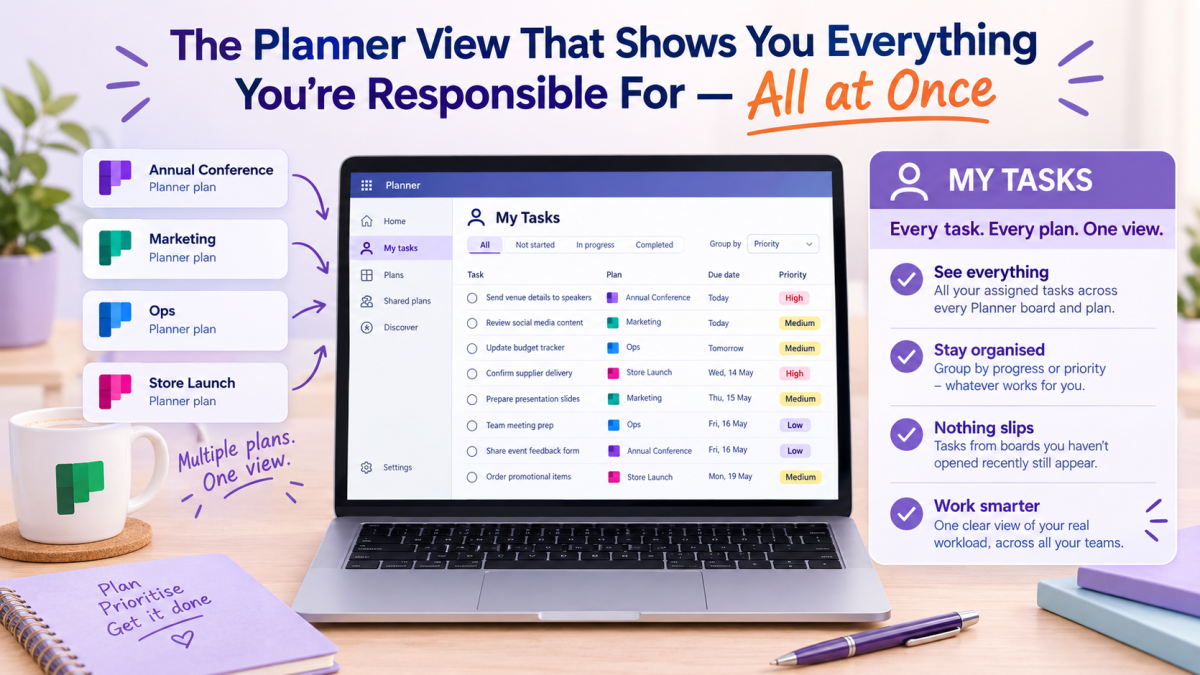
Stop hunting through multiple Planner boards for your tasks. My Tasks brings them all together so nothing slips through.
The Planner View That Shows You Everything You're Responsible For — All at Once
You know when you're trying to get a clear picture of your workload, and your tasks are spread across three different Planner boards, a To Do list, and a couple of flagged emails?
It's not that the tasks aren't being tracked. It's that they're tracked in too many places. And when you can't see everything in one go, things slip — not because you forgot, but because you never had the chance to see the full picture.
Planner has a view that solves this, and it takes about ten seconds to find.
What My Tasks actually does
My Tasks is a view in Microsoft Planner that pulls together every task assigned to you — across every Planner board and plan you're part of — into one consolidated list.
Instead of opening five different boards to check what's assigned to you this week, you open My Tasks and it's all there: every task, from every plan, in one place.
At Koffee Island, the events coordinator is part of four active Planner boards — the annual conference, the weekly ops plan, the marketing calendar, and a new store launch project. Before she started using My Tasks, checking her workload meant opening each board individually and scanning for her name. Now she opens My Tasks on Monday morning and has a complete picture of her week in under a minute.
How to find it
Open Microsoft Planner and look for My Tasks in the left-hand navigation. Click it and you'll see all your assigned tasks across every plan, grouped however makes most sense to you.
You can group by progress (not started, in progress, completed) or by priority — whichever gives you the most useful view of what needs attention first.
Why this helps
Nothing slips through the cracks. When tasks are scattered, the ones on boards you haven't opened recently are the ones that get missed. My Tasks surfaces everything, regardless of which board it lives on.
Monday mornings become clearer. Instead of working out what's on your plate by opening boards one by one, you have a single view that shows your full week at a glance.
It works across teams. If you're part of multiple projects or teams — each with their own Planner board — My Tasks is effectively the one place that reflects your true workload. No more mental juggling.
Quick win
Open Planner and go to My Tasks. Look at what's there — you might be surprised how many tasks appear from plans you haven't checked recently.
Pick the two most important ones, flag them as priority, and make those your focus for the start of the week.
That's your Monday morning sorted in about two minutes.
Want to get more from Microsoft 365?
Microsoft 365 with Copilot — The Human Advantage is full of practical skills like this — tools and habits that are already in your Microsoft 365 subscription, ready to make your working week noticeably more organised.
👉 Enrol in Microsoft 365 with Copilot — The Human Advantage
Categories: : boards, Microsoft Planner, planner, tasks