Why Is All Your Data in One Column? Excel's Text to Columns Fixes That Instantly
 Shelley Fishel Fishel
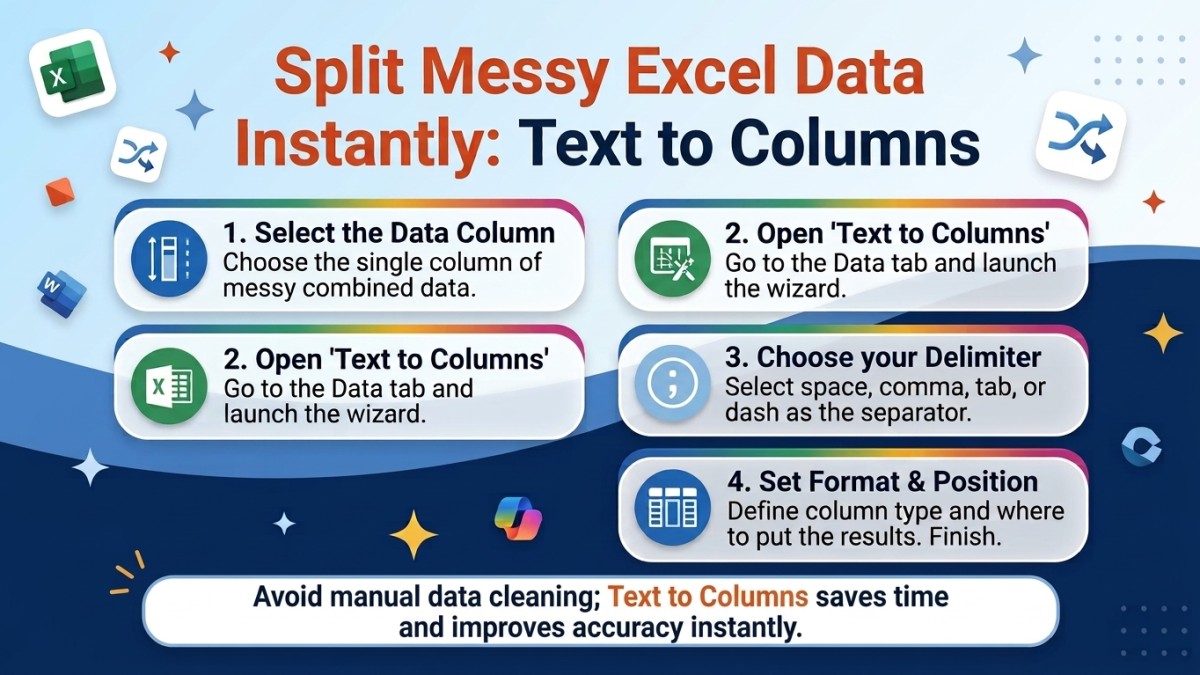
Stop manually separating data in Excel. Text to Columns does it in a few clicks using spaces, commas, or any separator you choose.
The Excel Feature That Splits Messy Data Into Proper Columns Instantly
You know when you paste a list into Excel — names, addresses, product codes, anything — and instead of landing neatly across separate columns, everything ends up squashed into one?
You can see the data is all there. It's just completely unusable in that form. And the thought of manually cutting and pasting each piece into its own column is enough to make you want to close the spreadsheet entirely.
Text to Columns sorts this in about 30 seconds — and once you know where it is, you'll reach for it constantly.
What Text to Columns actually does
Text to Columns is an Excel feature that takes data in a single column and splits it across multiple columns, based on whatever separator you tell it to use — a comma, a space, a tab, a dash, or any character you choose.
It's most useful when you've received data that was exported from another system, copied from a website, or pasted from an email — the kind of data that arrives in a format Excel doesn't immediately know how to handle.
At Koffee Island, the admin coordinator receives a weekly list of new supplier contacts from the procurement team. It arrives as a single column of text in the format: FirstName LastName, JobTitle, Company. Every week, she needs it split into four separate columns to update the contact database. Text to Columns does the whole thing in three clicks.
How to use it
Select the column of data you want to split. Go to the Data tab in the ribbon and click Text to Columns. A short three-step wizard opens:
Step 1 — Choose whether your data is separated by a character (Delimited) or by fixed widths. For most pasted data, Delimited is the right choice.
Step 2 — Choose your delimiter: Tab, Comma, Space, or Other (where you can type any character). You'll see a preview of how the data will split as you choose.
Step 3 — Set the format for each column if needed (text, date, general) and choose where to put the results.
Click Finish. The data splits into separate columns instantly.
Why this helps
Manual data separation is one of those tasks that feels quicker than it is — until you're halfway through a 200-row spreadsheet and realise you've been doing the same three keystrokes for twenty minutes.
Text to Columns removes that entirely. It also removes the human error that creeps in when you're doing anything repetitive at speed. The split is consistent, instant, and correct every time.
It's also genuinely useful for cleaning up data before running any kind of analysis or report — messy single-column data is one of the most common reasons Excel formulas don't behave the way they should.
Quick win
Find a column in any spreadsheet where data is combined that should be separate — full names, addresses, codes with descriptions, anything. Select it, go to Data → Text to Columns, and work through the wizard.
The whole thing takes under a minute. You'll immediately see how much cleaner the data becomes to work with.
Ready to get more from Microsoft 365?
Microsoft 365 with Copilot — The Human Advantage is packed with practical skills like this — tools that are already in your software, waiting to save you time the moment you know where to find them.